Weather
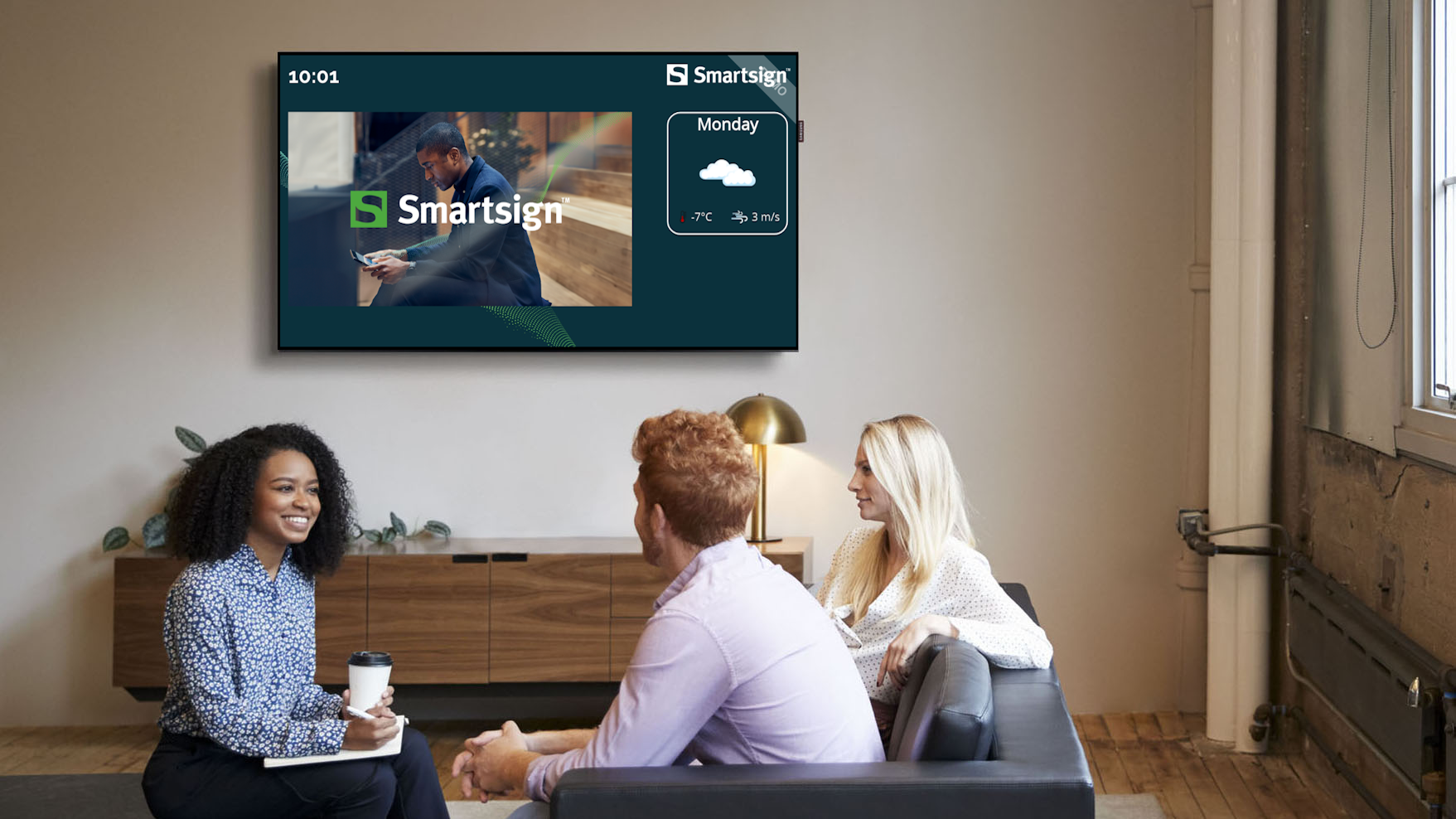
Weather is a topic of universal interest, and displaying weather information on digital signage can increase engagement and relevance for viewers.
By showing current conditions or forecasts, you can provide useful, contextual information that complements other content on your screens.
The Weather datasource retrieves forecast data from two trusted providers:
- Swedish Meteorological and Hydrological Institute (SMHI)
- WeatherStack API
How it works
When added to a screen layout or Smart Media, the Weather datasource retrieves weather data for a selected location and makes it available for display using weather-based templates or databound fields.
Weather information is updated automatically at regular intervals and can be displayed using icons, text, or a combination of both, depending on the template design.
Typical information available includes:
- Current weather conditions
- Temperature
- Weather icons
- Location-based forecasts
Add weather to a screen layout
Weather elements are included in some templates and screen layouts by default, but you can also create your own template if you need a custom design.
In this example, we will add weather elements to a previously created screen layout tå display weather information for a specific location.
Learn how to create a custom screen layout in the Create screen layout guide
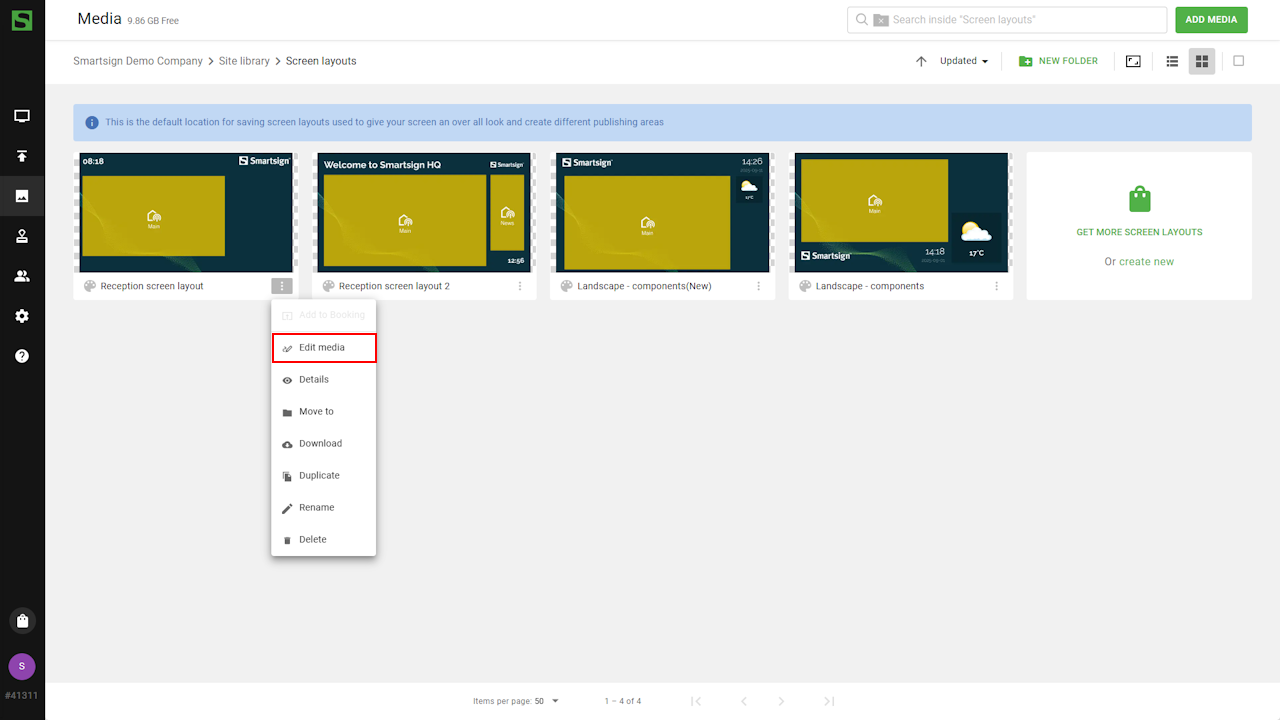
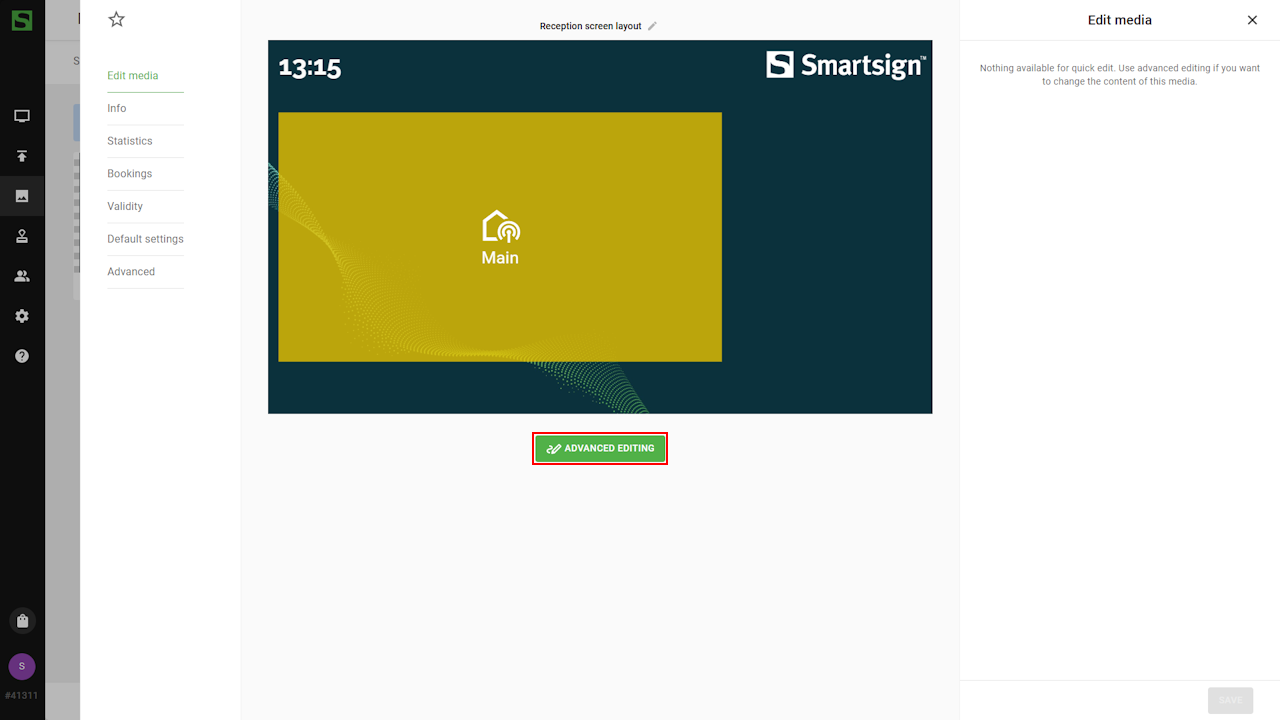
- Go to the Screen layouts folder in media library and edit
the layout.
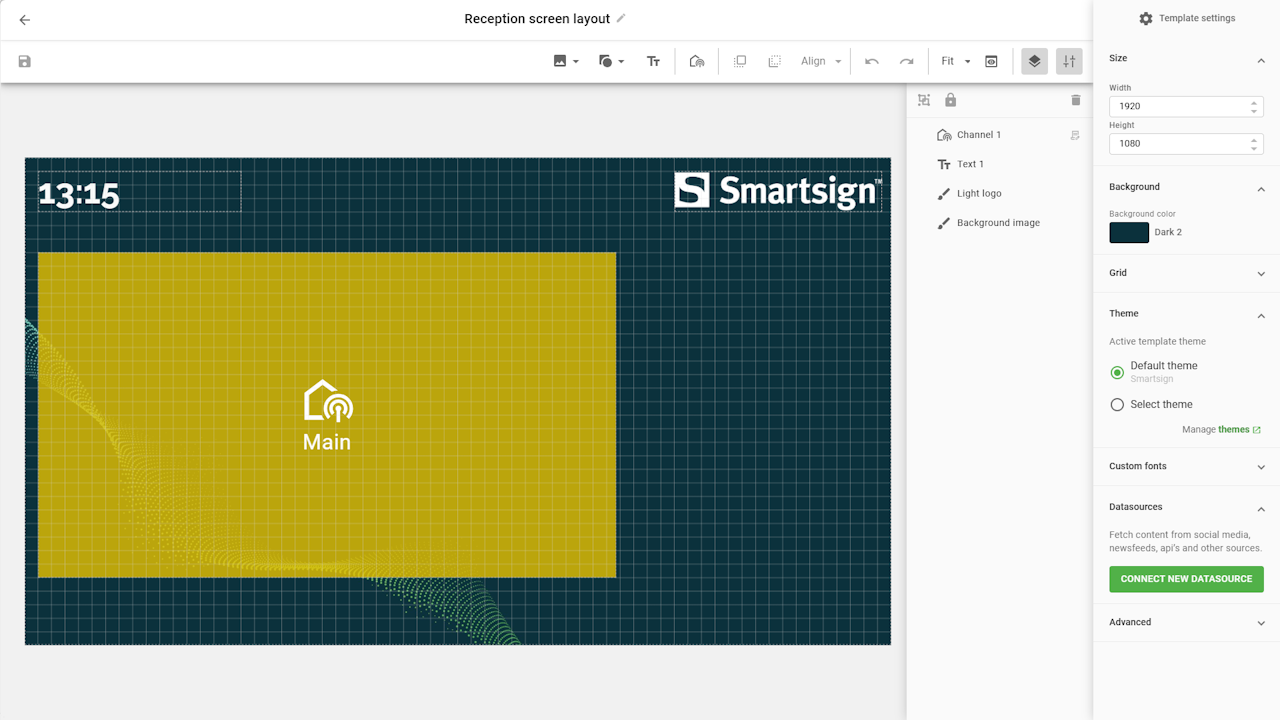
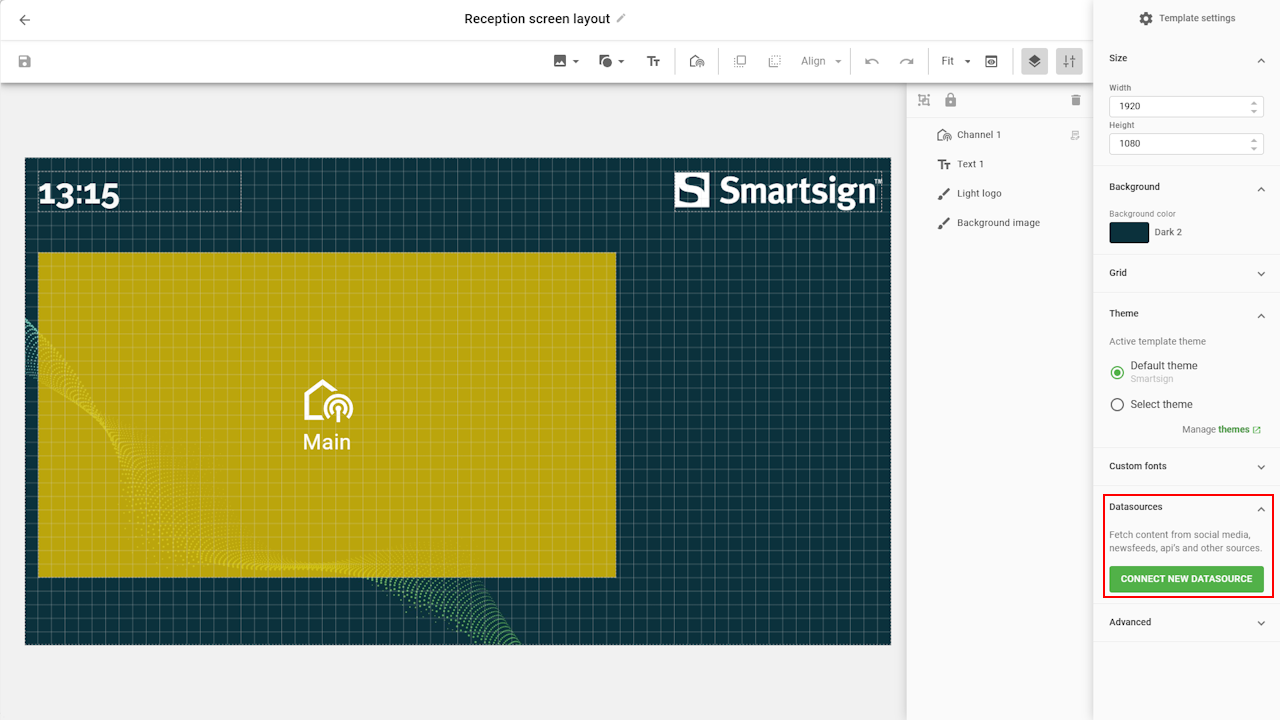
- Go to the datasource tab and click connect new datasource
- Select Weather to see and adjust settings as needed,
and click connect when done.
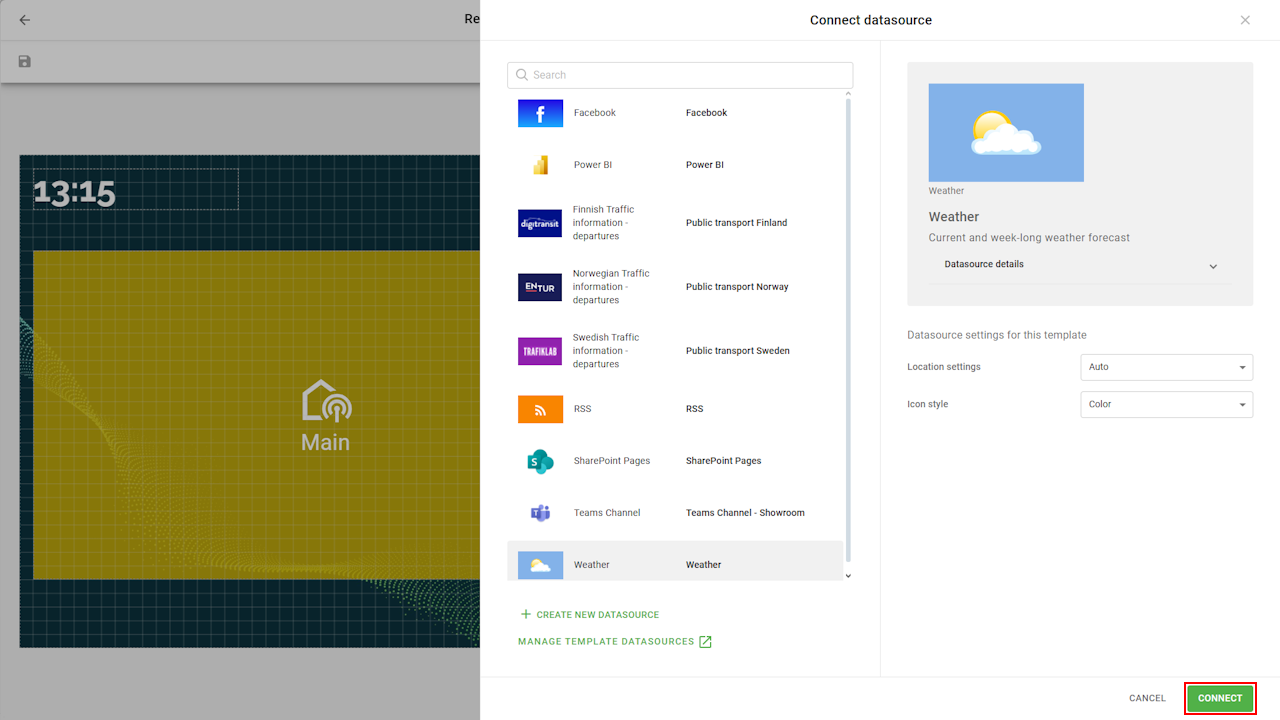
Datasource settings
| Setting | Description | Example |
|---|---|---|
| Location | Select the target location for the weather forecast. | |
| Choose Auto to use the screen or player location (Geo IP or manually set), | ||
| or Manual to define a fixed location. | 60.484619, 15.435288 | |
| Icon Style | Select which icon set to use when displaying weather | |
| conditions. | Color, Black or White |
- Use Auto location in the template and control location per screen or screen folders settings for local deployments.
- Use Manual location if you want to display weather for a different location than where the screen is physically installed.
- Ensure sufficient contrast between weather icons/text and the background.
- Combine Weather with Date & Time for a more contextual display.
GeoData settings
GeoData is enabled by default on all screens. The screen location is automatically determined using the external IP address of the network the screen is connected to.
If the detected location is incorrect, you can disable GeoData in the screen settings and instead define a manual location at the screen or screen folder level.
For more information, see the GeoData settings.
Databind elements
Once the datasource is connected, you can start adding elements that bind to the Weather datasource.
- Add text fields or image elements to display weather information
- Bind the elements to the Weather datasource
- Use icons, temperature values, and descriptive text to create a clear and readable layout
You can combine weather information with other elements such as date & time, headlines, channels or branding to create a complete screen layout.
There are several weather binding options available:
| Data binding | Description | Example |
|---|---|---|
| Max temperature | Shows the maximum temperature of the day | 25°C |
| Min temperature | Shows the minimum temperature of the day | 10°C |
| Wind speed | Shows current wind speed | 2 m/s |
| Name of the day | Shows the day based on index setting | Friday |
Name of day
- Add a textbox and bind to the selected data
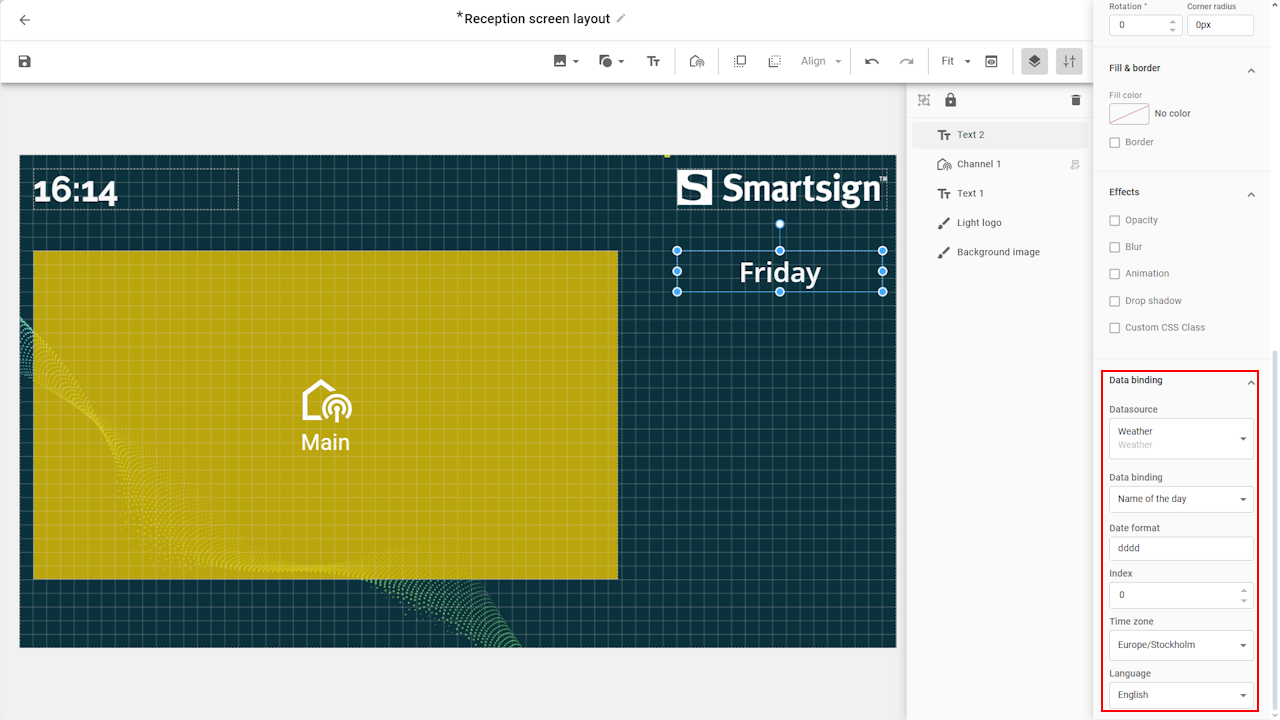
Index is used to select which day yo use from the datasource and useful when you want to show weather for several days.
Example:
- 0 = today
- 1 = tomorrow
- 2 = day after tomorrow
Weather icon
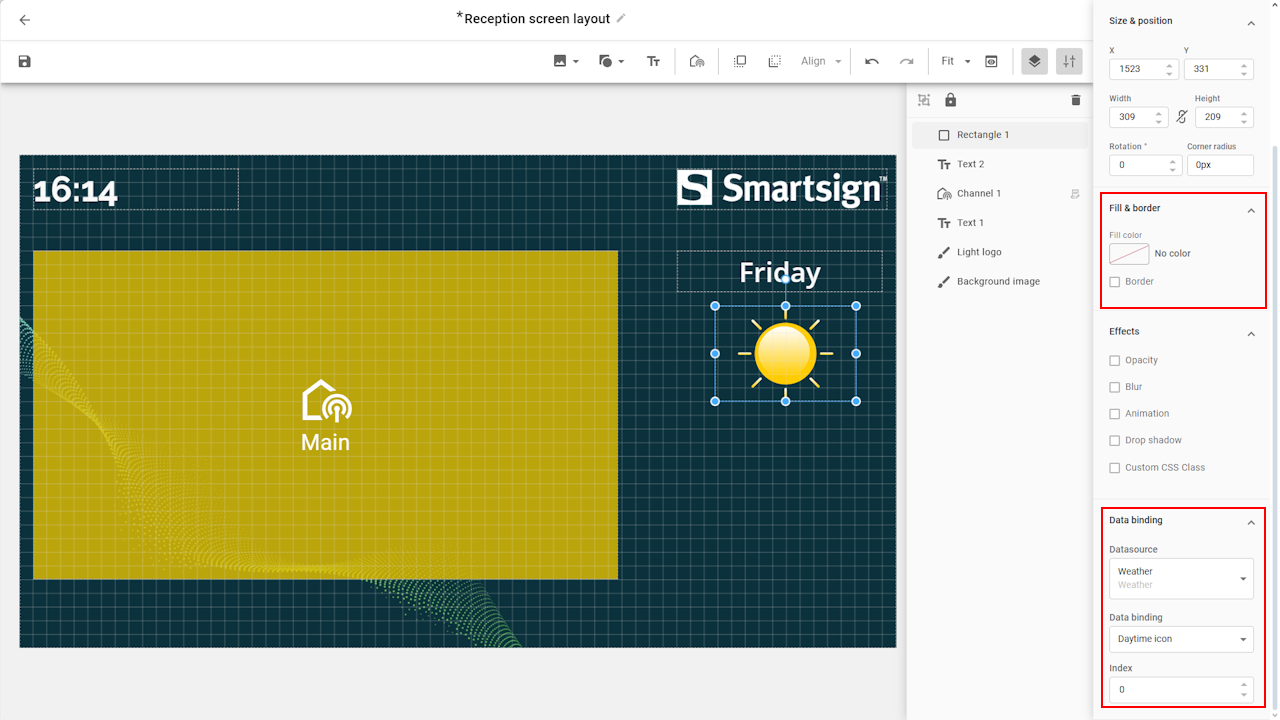
- Add a shape placeholder for the weather icon.
- Adjust background color and connect to datasource.
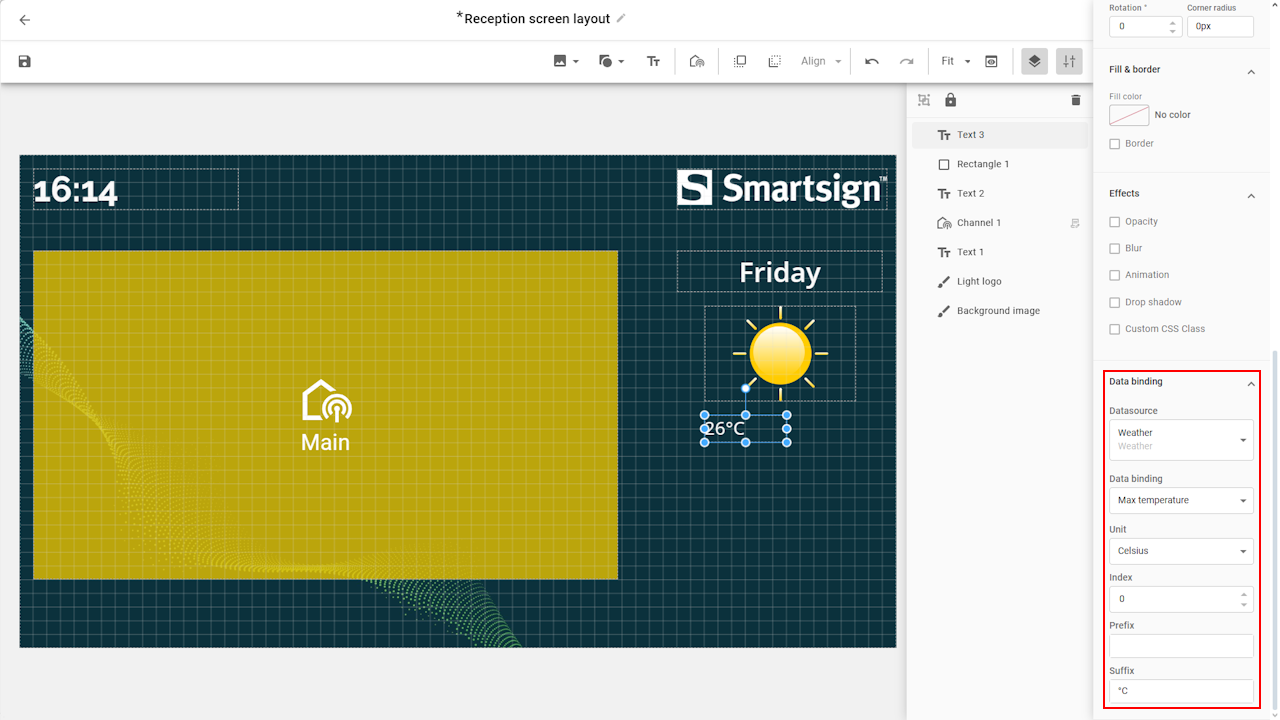
Max temperature
- Add a textbox and connect it to the max temperature data binding.
- Prefix/Suffix allows you to add text before or after the text.
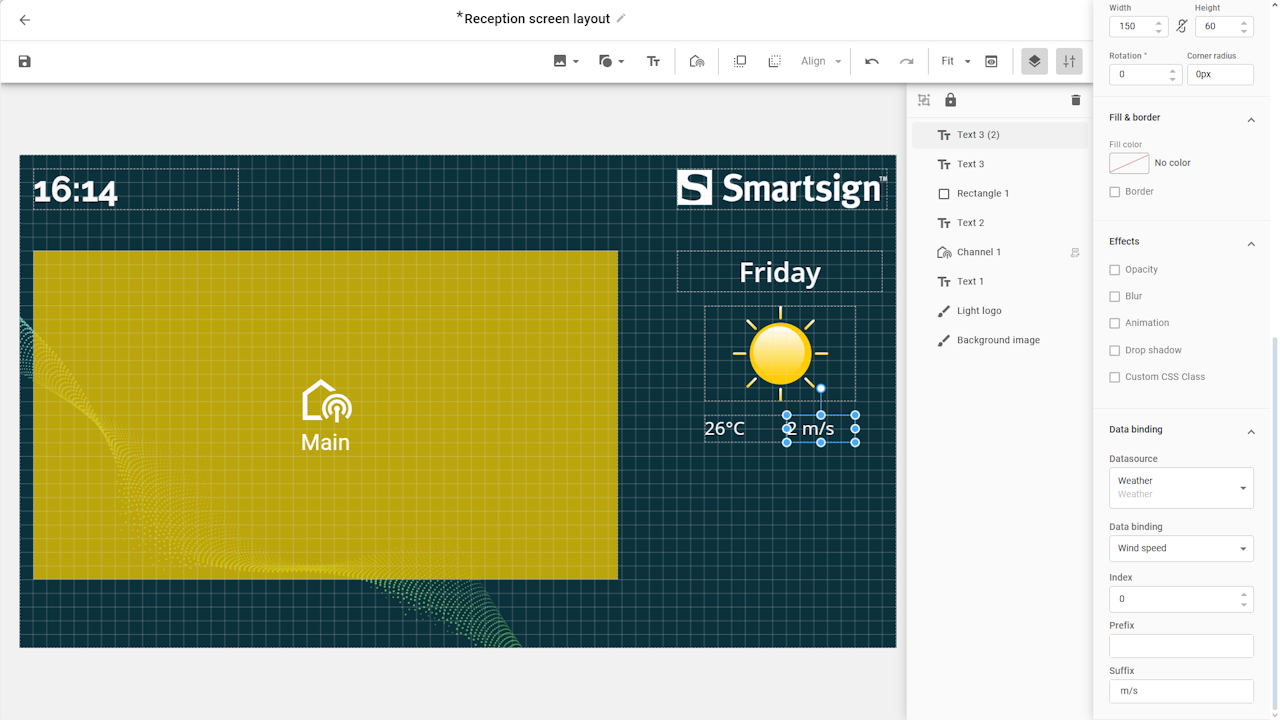
Wind speed
- Add a textbox and connect it to the wind speed data binding.
This will show the current wind speed.
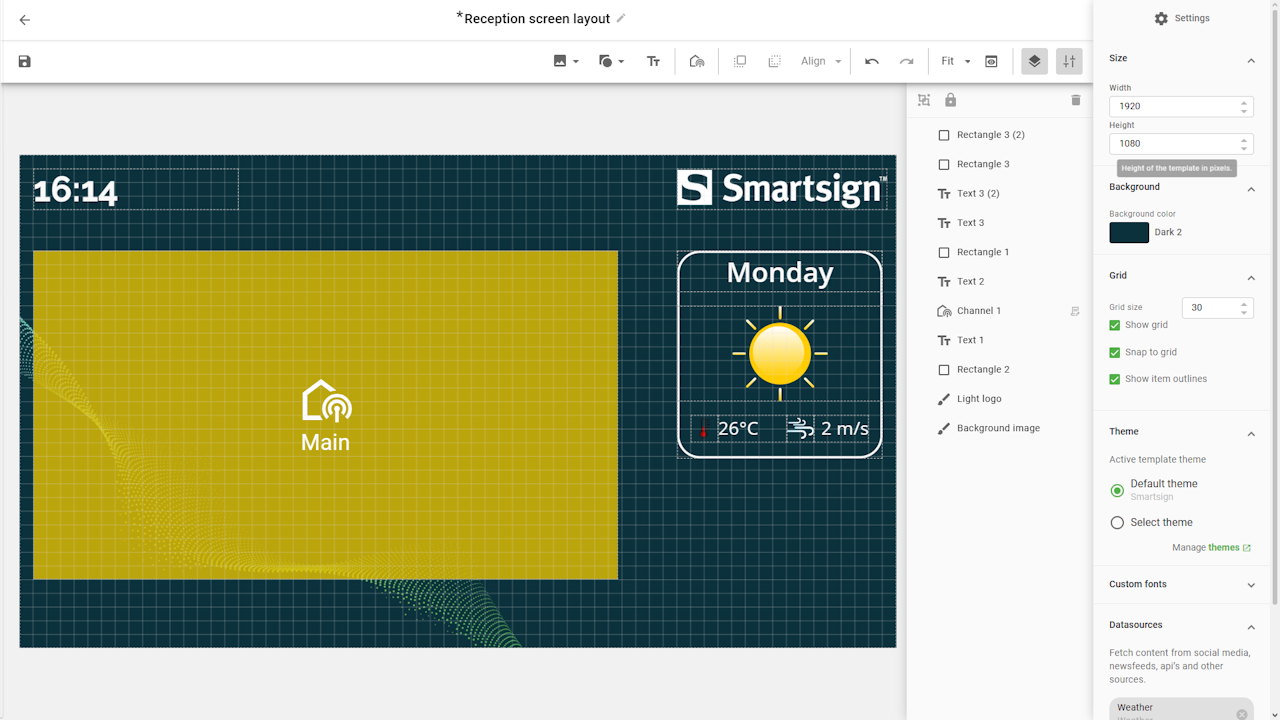
If you want to use same formatting setting on each of the text boxes, use copy/paste on your keyboard to create a second box with same settings.
We now have a simple screen layout that shows the weather of the current day and can make additional adjustments like borders, wind and temperature icons.
Custom weather templates
If you don’t want to display weather directly in a screen layout, you can create a custom template instead. This allows you to use weather content in fullscreen or as part in a booking, for example alongside other content such as lunch menus or visitor information.
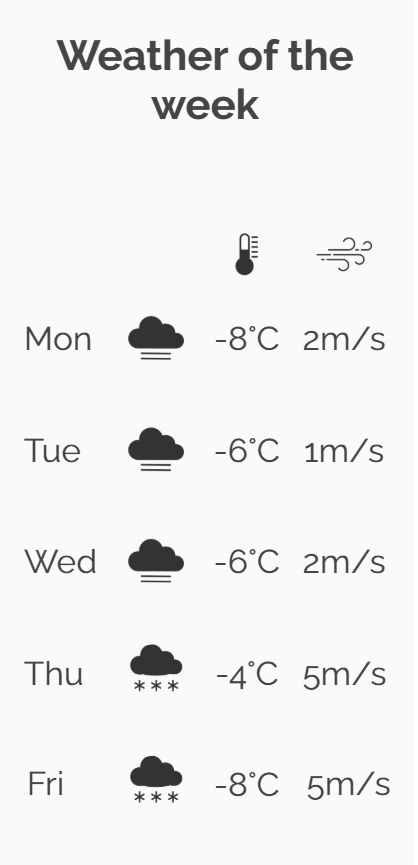
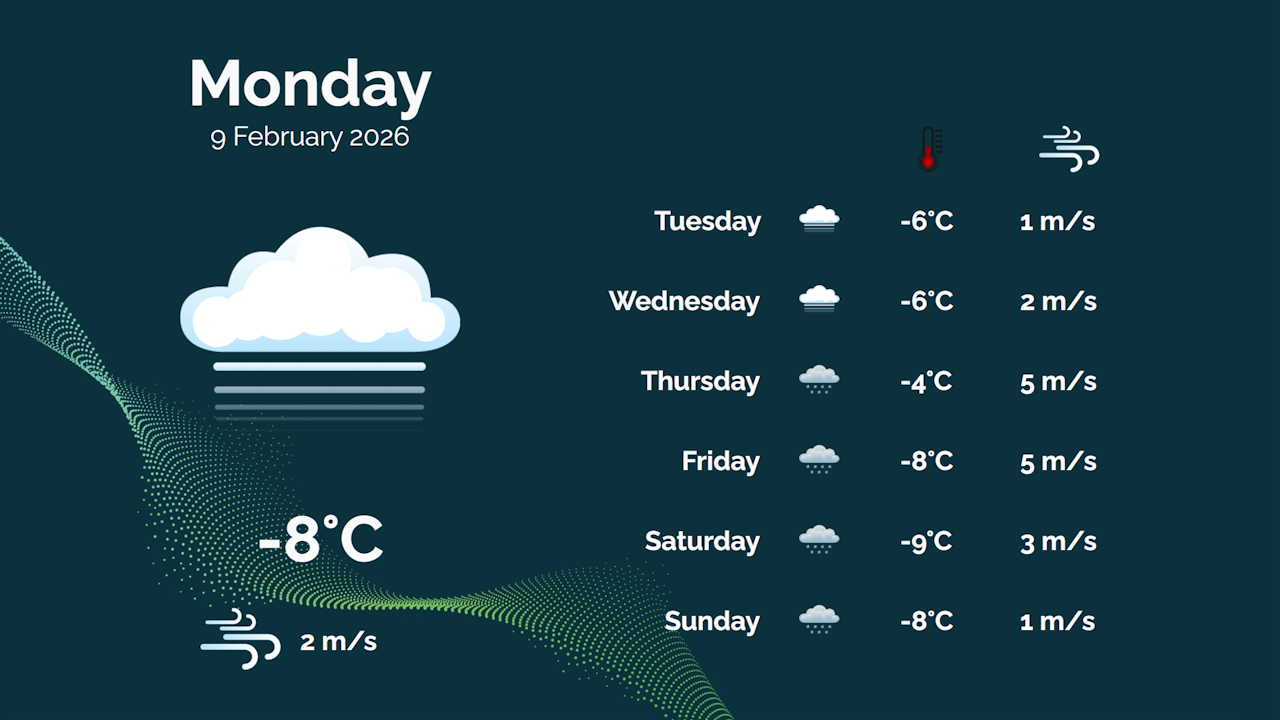
Once created, the template is saved in the Templates menu and can be used to create Smart Media. Smart Media items are stored in the Media Library and can be scheduled in bookings or added to screen layouts like any other media.
Limitations
- Not supported on legacy screens
- Not supported in snapshot mode